Why are my Serato tracks showing up as missing?
A track turns orange in Serato when its library entry is intact but Serato cannot reach the file it points to. There are only a handful of reasons: the drive is not connected, macOS is not letting Serato read it, the file was moved or renamed, or it was deleted. Each has a different fix, and relocating blindly only helps with one of them. So find every missing track first, sort them by cause, and fix each group the right way. Plug in your drives before anything else, since a disconnected drive is the most common cause and fixes itself, and back up your Serato folders before any bulk change.
Diagnose and fix missing files in Serato
-
Reconnect your drives and restart SeratoConnect every drive your music lives on, then restart Serato. Tracks on a drive that was simply unplugged go back to normal on their own.
-
Let Serato read your drivesOn macOS, open System Settings, Privacy & Security, Files and Folders, and allow Serato DJ Pro to access Removable Volumes. Serato notes it may also need Full Disk Access. Without it, tracks on external drives can go missing after a restart.
-
Find every missing trackRight-click a column header and add the Location column, so you can see where each missing track points. On Serato DJ Pro 4, add the File Status column too and sort by it to group every missing track together.
-
Sort them by causeRead the Location of each group: a drive that is not there, a folder you moved or renamed, or a file that no longer exists anywhere. Each cause below has its own fix.
-
Relink what movedFor files you moved or renamed, drag the folder they now live in onto Relocate Lost Files in the Files panel. If it finds nothing, see why Relocate Lost Files fails.
-
Clear files that are genuinely goneFor tracks whose files were deleted, back up your Serato folders, then select the orange entries and press Alt+Delete to remove them from the library.
What an orange track in Serato actually means
When a track shows orange, the song is still in your library and still sits in your crates, but the file path Serato saved for it no longer leads to the audio. The entry is fine. The link is broken. Nothing has been deleted from your drive just because a track went orange, which is exactly why you should diagnose before you delete.
There are four reasons a file goes missing, and they each have a different fix. Guessing wrong wastes time, and in the worst case you delete entries for tracks that would have come straight back if you had plugged a drive in first.
Step 1: Find out why before you fix anything
Run this quick triage in order:
- Is the drive connected? If your music lives on an external or secondary drive, plug it in and restart Serato. This alone fixes the majority of orange tracks.
- Did you move or rename anything? If you reorganised folders or renamed files, the path is broken and you will need to relocate.
- Can Serato read the drive? If tracks on an external drive keep going missing after a restart, macOS may not be giving Serato access. Covered below.
- Did you just update Serato or move to a new Mac? Paths and permissions both change then. Covered below.
- Are the files actually deleted? If the audio is genuinely gone, no relocate will bring it back, and the right move is to clear the entries.
Add the Location column (right-click any column header) so you can see where each missing track points. That single column tells you most of what you need.
Reason 1: The drive is not connected
This is the most common cause and the simplest. If your tracks live on an external drive or a separate internal drive, Serato shows them orange the moment that drive is not mounted. Connect the drive, restart Serato, and the tracks return to normal with no further action.
Before you ever start deleting orange tracks, confirm every drive is plugged in. Deleting a missing entry while its drive is unplugged means rebuilding that part of your library later for no reason.
Reason 2: You moved or renamed the files
If you reorganised your music, moved a folder, or renamed a folder, the saved path no longer matches and Serato cannot find the audio. This is what Relocate Lost Files is built for: drag the folder your music now lives in onto the Relocate Lost Files button in the Files panel.
One important catch: if you renamed a folder rather than moved its contents, Serato’s cached path can stop relocate from working at all. If relocate finds nothing, that is usually why. The full set of reasons relocate fails, and the fix for each, is here: Serato Relocate Lost Files not working.
Reason 3: macOS is not letting Serato read the drive
Since macOS 10.15 Catalina, apps need your permission to read removable drives. Serato’s support team documents what happens without it: Serato may not be able to reach files on external drives, and tracks you import may not stay imported after you restart the software. So the tracks show as missing even though nothing moved on disk.
macOS normally asks the first time Serato sees an external drive. If you clicked Don’t Allow or missed the prompt, open System Settings, Privacy & Security, Files and Folders, and switch on Removable Volumes for Serato DJ Pro. Serato notes it may also need Full Disk Access. Then relaunch Serato with the drive connected. More on keeping a drive-based library healthy is in how to run a Serato library from an external drive.
Reason 4: You updated Serato or moved to a new Mac
A new Mac with a different username, or music copied to a different folder, changes every path at once, so the whole library can go orange overnight. Serato’s own advice after a move is to rescan ID3 tags and then drag your music folder onto Relocate Lost Files. The full routine is in how to move your Serato library to a new Mac.
Updating to Serato DJ Pro 4 moved the library into a new database, and anything that was missing before the update comes across still missing. If crates disappeared too, see crates missing after a Serato 4 or 5 update.
Reason 5: The file is genuinely gone
If a file was deleted, emptied from the Trash, or lost when a drive failed, no relocate will recover it, because there is nothing to relink to. At that point the orange entry is just clutter in your crates, and the job is to clear it cleanly (and ideally re-source the track).
How to remove missing files you cannot recover
Once you are certain the audio is gone, group and clear the dead entries:
- Back up first. Quit Serato and copy your
_Serato_folder somewhere safe. Bulk deletion is the one task where a backup genuinely saves you. Steps: how to back up your Serato library. - Open the Files panel and click Rescan ID3 Tags to refresh the library.
- In the All… crate, click the Location or status column header to group the orange tracks together.
- Select the dead entries (Shift-click the first and last to grab a run).
- Press Alt+Delete to remove them from Serato only. The file stays on your drive. Use Control+Shift+Delete only if you also want to send the audio file to the Trash.
If clearing these reveals duplicate entries for the same song, that is a separate problem worth tidying: how to remove duplicate tracks in Serato.
Relinking hundreds of tracks at once
Relocate Lost Files works folder by folder and matches on the old path, so it is fine for one moved folder and slow for a whole library that moved at once. When it finds nothing at all, the cause is usually a renamed folder, the Apple Music library option, or a duplicate entry, all covered in Serato Relocate Lost Files not working.
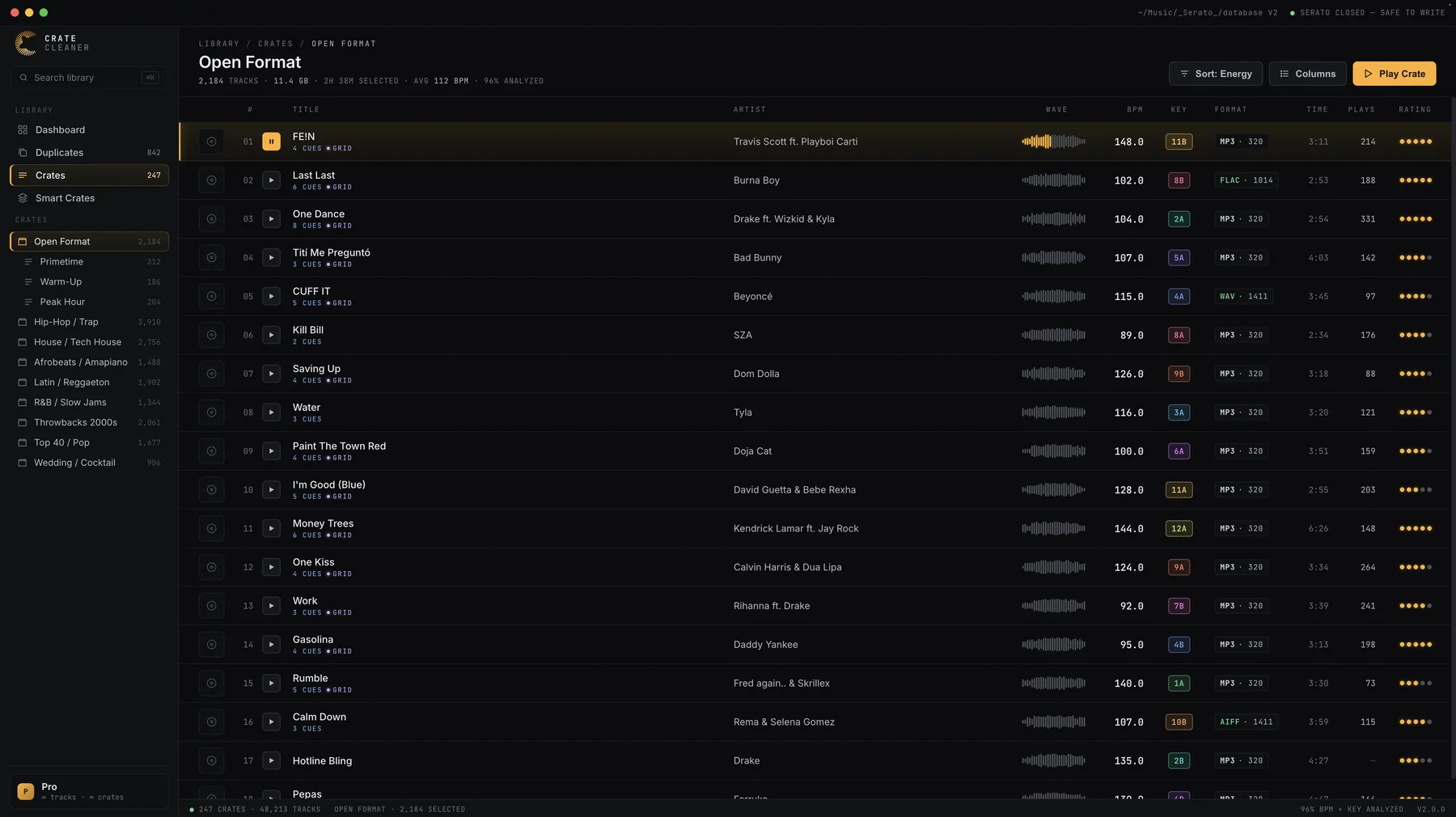
For a library-wide relink, Library Repair in Crate Cleaner reads your Serato library directly, matches every missing entry to the files that still exist on your drives, and relinks them in place, including the copies inside your crates, without leaving duplicates behind. It flags the ones that are genuinely gone so you know what actually needs re-sourcing. The scan is free with no card required, so you can see exactly which tracks it can relink before you change anything. The free plan then includes 5 repairs a day, and Pro and Studio repair without a limit.
Try Crate Cleaner free → · See pricing →
How to stop tracks going missing in future
- Keep all your DJ music in one folder, and avoid renaming folders once tracks are imported.
- Always connect your music drive before launching Serato.
- When writing key or BPM data with a tagging tool, write to the comments or dedicated tags, never to the filename. Renaming the file breaks the path and turns the track orange.
- Eject external drives properly rather than pulling them out, so paths stay clean.
FAQ
What does an orange track mean in Serato? The library entry is fine, but the file it points to has moved, been renamed, sits on a disconnected drive, or was deleted. The audio is not removed just because a track shows orange.
Why are tracks missing only sometimes? Usually because they live on an external or secondary drive. When that drive is not connected at launch, those tracks show orange. Connect it and restart Serato.
Should I delete missing tracks? Only after confirming the file is genuinely gone. Plug in every drive and try relocating first. Deleting a missing entry whose drive was simply unplugged means rebuilding that part of your library later.
Does deleting a missing track remove the file from my drive? Only Control+Shift+Delete touches the file, sending it to the Trash. Alt+Delete removes the entry from Serato and leaves any existing file untouched.
Can I recover missing files automatically? You can relink files that still exist on your drives, either with Relocate Lost Files or a Serato-aware cleaner. Files that were actually deleted cannot be relinked and have to be re-sourced.
Relink every orange track in one pass
Crate Cleaner's Library Repair finds where your missing files went and relinks them in Serato. 5 free repairs a day on your real library.