How do you remove duplicate tracks in Serato?
Serato DJ Pro has no built-in duplicate remover, so you have three options: sort your library and delete copies by hand, run a folder-based tool like dupeGuru (which can leave broken entries inside Serato), or use a Serato-aware cleaner that clears duplicates from the library and your crates together. Whichever you pick, back up your _Serato_ folder first, and know Serato’s two delete shortcuts: Alt+Delete removes a track from Serato only, and Control+Shift+Delete also sends the file to the Trash.
Remove duplicate tracks in Serato manually
-
Back up your Serato folderQuit Serato and copy the _Serato_ folder from your Music directory somewhere safe, so you can roll back if you delete the wrong copy.
-
Open the All… crateLaunch Serato DJ Pro and click the ‘All…’ crate so every track in your library appears in one list.
-
Sort to group duplicates togetherClick the Song or File Name column header to sort alphabetically. Identical tracks now sit next to each other, making duplicates easy to spot.
-
Confirm which copy to keepCheck the Location column to see where each file lives. Keep the higher-quality or correctly-stored copy and target the stray one.
-
Delete the duplicateSelect the unwanted copy and press Alt+Delete to remove it from Serato only, or Control+Shift+Delete to also send the file to the Trash. Empty the Trash only once you are sure.
-
Rescan ID3 tagsOpen the Files panel and click Rescan ID3 Tags to refresh the library and clear leftover ghost entries.
Why duplicate tracks pile up in Serato
Duplicates are rarely your fault. They’re a side effect of how Serato tracks files. The usual causes:
- Re-importing the same folder. Drag a folder into a crate a second time (say, after reorganising your music) and Serato adds fresh entries instead of recognising the tracks are already there.
- Switching computers or operating systems. Importing a library on Windows and later on macOS (or the reverse) frequently doubles up entries, because the file paths look different to Serato even though the songs are identical.
- Relocating missing files the wrong way. When tracks go missing and you re-add them from a new location instead of relinking, you keep the old (missing) entry and gain a new (working) one. If your library is full of orange “missing” tracks, fix those first. See how to fix missing files in Serato.
The result is a bloated library, cluttered crates, and wasted SSD space, and there is no one-click “remove duplicates” button anywhere in Serato DJ Pro to undo it. That gap is why so many DJs go looking for a workaround.
How to find duplicates before you delete anything
Don’t start deleting blind. Group the duplicates first so you can see exactly what you’re removing:
- Open the All… crate so your entire library is visible.
- Click the Song column header (or File Name) to sort alphabetically. Identical titles line up next to each other.
- Turn on the Location column (right-click any column header to add it). This shows where each file actually lives, so you can tell a true duplicate from two different versions of the same song.
The thing to watch for: a “duplicate” by title isn’t always a duplicate file. A clean edit and a dirty edit, or a 320kbps copy and a 128kbps copy, share a title but are different tracks. Use the Location, bitrate, and length to confirm before you delete. That’s the step rushed deletions skip.
Method 1: Delete duplicates manually in Serato
This works in any Serato install and costs nothing. Follow the steps in the box above. The one thing every DJ needs to memorise is the difference between the two delete shortcuts:
- Alt+Delete removes the track from your Serato library only. The file stays on your hard drive. Control+Delete does the same in the All crate, but in any other crate it only takes the track out of that crate.
- Control+Shift+Delete removes it from Serato and sends the file to the Trash. Once you empty the Trash, it is gone.
If you only want to tidy your library, use Alt+Delete. Only reach for Control+Shift+Delete when you’re certain you want the file gone. Removing only the entry is also why deleted duplicates can come back.
The downside: on a library of thousands of tracks, doing this by hand is slow and error-prone. One mis-click with the destructive shortcut and you’ve deleted a track you meant to keep, which is exactly why the back-up step isn’t optional.
Method 2: Folder-based duplicate finders (and their catch)
Tools like dupeGuru scan your music folders for duplicate files and can match by filename or by audio content. They’re fast and they’ll happily clear duplicate files off your drive.
But there’s a catch that bites DJs specifically: these tools don’t know Serato exists. They delete the file on disk but leave the entry behind inside Serato’s database, so the track still appears in your library and crates, except now it won’t load, because the file it points to is gone. You’ve traded duplicate tracks for missing ones. If you go this route, expect to run a relocate-and-cleanup pass afterwards (here’s how that goes wrong). The full side-by-side is in dupeGuru vs Crate Cleaner.
Method 3: Clean duplicates the Serato-aware way
The fix for everything above is a cleaner that reads the Serato library directly instead of just scanning folders. That’s what Duplicate Finder in Crate Cleaner does: it scans your actual Serato DJ Pro database, finds true duplicates, archives the extra copies rather than deleting them, and moves their crate memberships onto the copy you keep, so you don’t end up with orphaned entries or broken file paths afterwards. The scan is free on your real library with no card required, so you can see what it flags before you change anything. The free plan archives up to 10 duplicates a day, and Pro and Studio have no limit.
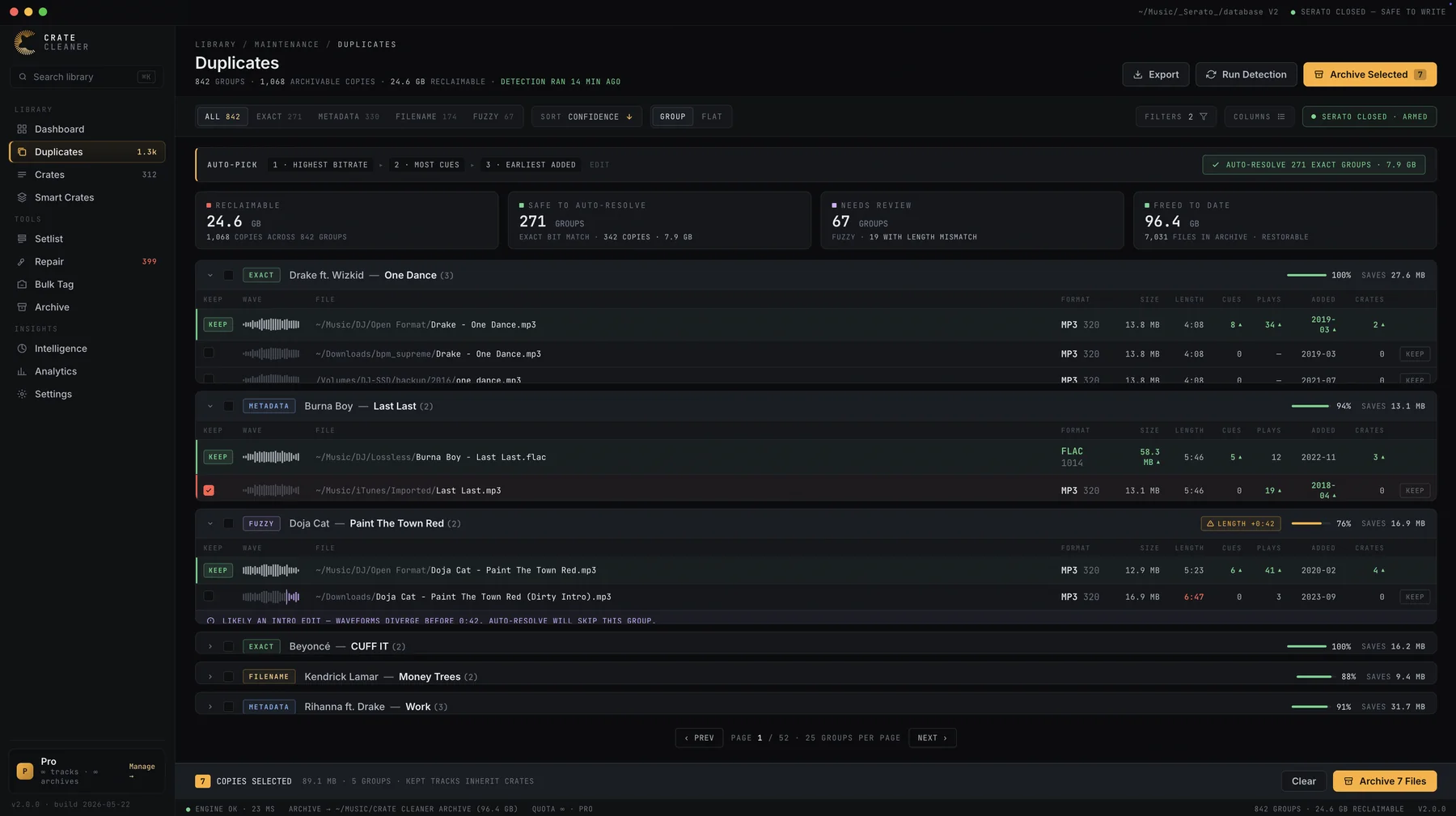
If you’ve got more than a few hundred tracks, this is the difference between a ten-minute job and an afternoon of manual sorting.
Try Crate Cleaner free → · See pricing →
Before you delete anything: back up your Serato library
Bulk-deleting is the one library task where a backup genuinely saves you. Quit Serato and copy the _Serato_ folder (in your Music directory) somewhere safe before you start. It holds your crates, cue points, and library database, and a copy means any mistake is a thirty-second restore instead of a lost night’s prep. Full steps: how to back up your Serato library.
FAQ
Does Serato DJ Pro have a built-in duplicate remover? No. As of 2026 there’s no native “find duplicates” or “remove duplicates” feature in Serato DJ Pro. You have to sort and delete manually, use a third-party folder tool, or use a Serato-aware library cleaner.
Will deleting a duplicate remove the song from my computer? Only if you use Control+Shift+Delete, which sends the file to the Trash. Alt+Delete removes the track from your Serato library but leaves the file on your drive.
Why do my duplicates keep coming back? Usually because the duplicate source is still there. For example, the same folder is imported into two crates, or a missing-file entry keeps getting re-added. Clear the root cause (and avoid re-dragging folders you’ve already imported) and they’ll stop reappearing. The full list of causes is in why Serato duplicates keep coming back.
Is it safe to delete duplicates by content match? Yes, as long as you confirm the match is a true duplicate and not two versions of the same song (clean vs dirty, or different bitrates). Check the Location, length, and bitrate before deleting, and back up first.
Clear duplicates without breaking crates
Crate Cleaner's Duplicate Finder archives the extra copies and keeps your crates pointing at the file you kept. Free on your real library, 10 a day.