How should you organize your Serato crates?
The key thing to understand is that Serato crates work like playlists, not folders. A track can live in many crates at once, and adding or removing it from a crate never moves or deletes the actual file. So organize entirely inside Serato using crates, subcrates, and smart crates, and never rearrange your music in Finder, because moving files on disk is what breaks paths and turns tracks orange. A system that works for most DJs: broad genre crates, BPM or energy subcrates inside them, smart crates to auto-sort by tag, and a few manual crates for specific gigs or sets.
Set up a Serato crate system
-
Keep all your music in one folderBefore building crates, put your audio in a single folder and import it to Serato. Do not split songs into folders and subfolders on disk, because Serato organising happens inside the app, not on the filesystem.
-
Create top-level genre cratesClick Create Crate and name each one broadly, for example House, Hip-Hop, Disco. Double-click a crate to rename it.
-
Add BPM or energy subcratesDrag a new crate onto a genre crate to nest it as a subcrate, then split each genre by tempo range or energy level.
-
Build smart crates for the automatable partsClick Create Smart Crate, add rules such as BPM between 120 and 124, and tick Match all of the following rules for AND logic, or leave it unticked so a track matching any rule is added. These crates fill and update themselves.
-
Add manual crates for specific gigs or setsMake a plain crate per residency, event, or set type, and drag in the tracks you want. These capture vibe and context that rules cannot.
-
Color and favorite your most-used cratesAssign crate colors and right-click to Add to Favorites so the crates you reach for most are fast to find during a set.
Crates are playlists, not folders
This is the single idea that makes everything else click. A Serato crate does not hold your files. It holds references to them. The same track can sit in your House crate, your Peak Time crate, and your Summer 2026 crate at the same time, and there is still only one file on your drive. Remove a track from a crate and nothing happens to the file or to its entry in your main library.
That leads to one cardinal rule: organize inside Serato, never on the filesystem. Do not sort your music into nested folders in Finder. Keep all your audio in a single folder, import it once, and do all your sorting with crates. The moment you start moving and renaming files and folders on disk to organize them, you break the paths Serato saved, and your tracks turn orange. If that has already happened, see how to fix missing files in Serato. The clean approach avoids the problem entirely. The file side of this, from folder layout to tagging, is in how to organize a DJ music library.
The three building blocks
Crates are your manual playlists. You drag tracks in, you reorder them, you decide what belongs.
Subcrates are crates nested inside other crates. Drag one crate onto another to nest it. They let you keep a large, detailed structure that stays browsable, because you can collapse a parent crate down to a single line. There is a setting under Setup, then Library + Display, called “Include Subcrate Tracks” that controls whether a parent crate also shows everything inside its subcrates. Turn it on or off depending on how you like to browse.
Smart crates fill themselves using rules. You set conditions like a BPM range, a genre tag, or a year, and Serato keeps the crate populated automatically, refreshing on launch or when you force it. They are perfect for anything a rule can describe, so you never have to file those tracks by hand. The full setup, with every rule option and where Serato's version runs out, is in how to set up smart crates in Serato.
A crate system that works
There is no single correct layout, but this structure suits most working DJs and scales well:
- Broad genre crates at the top level. House, Hip-Hop, Disco, R&B, and so on. Keep the list short enough to scan.
- BPM or energy subcrates inside each genre. Many DJs split a genre into tempo bands (for example, 120 to 124, 125 to 128) or by energy (warm-up, peak, after-hours). This is what lets you grab the right record fast mid-set without scrolling your whole library.
- Smart crates for the automatable stuff. Recently added, tracks by a specific genre tag, a BPM range, or a release year. Set the rule once and forget it.
- Manual crates for specific gigs, residencies, or set types. A crate for a weekly night, a wedding set, or your openers. Rules cannot capture vibe and context, so these stay hand-built. For a wedding, see how to organize wedding DJ crates.
The mindset that ties it together, echoed by a lot of experienced DJs, is to treat your library as a database you query, not a shelf you file. The structure exists so that in the moment, you can find the next record in seconds.
How to set it up in Serato
Follow the steps in the box above. A few mechanics worth knowing as you build:
- Nesting precisely: drag a crate to the far left of the crates panel to keep it top-level, or drag it slightly right onto another crate’s name to make it a subcrate.
- Quick crate creation: dragging a track onto empty space in the crates panel creates a new crate with that track already in it.
- Smart crate logic: with Match all of the following rules ticked, a track must meet every rule to be included. Unticked, meeting one rule is enough. Tick it to narrow (House AND 120 to 124 BPM), untick it to widen.
Use Serato’s tools to keep it browsable
Serato DJ 4.0 added several features that make a big library manageable:
- Crate colors: assign colors to regular and smart crates so you can spot sections at a glance.
- Favorite crates: right-click a crate and choose Add to Favorites to pin a shortcut at the top of the list. Use “Show Original Crate” to jump back to its real position.
- Crate search: filter and find crates by name without disturbing your current selection.
- Show in Crates: right-click a track and choose Show in Crates to see every crate it lives in. This is invaluable when you are cleaning up and want to know where a track is filed before changing anything.
Separately, older versions of Serato have a Protect Library option in Setup that locks crates and file tags against accidental edits. Serato’s settings documentation lists it as available only up to Serato DJ Pro 3.3.5, so check whether your version still has it before relying on it.
Sorting tricks worth knowing
Custom crate columns let you set a sort rule per crate, and Serato remembers it. A history-based crate can stay sorted by play order, while a prep crate sorts by BPM. Click a column header to sort, click again to flip ascending or descending.
Secondary sort groups by one field and then sorts within it by another. Sorting by key and secondary-sorting by BPM lines up tracks that are both harmonically compatible and close in tempo, which makes smoother blends much faster to find.
Keep your crates clean
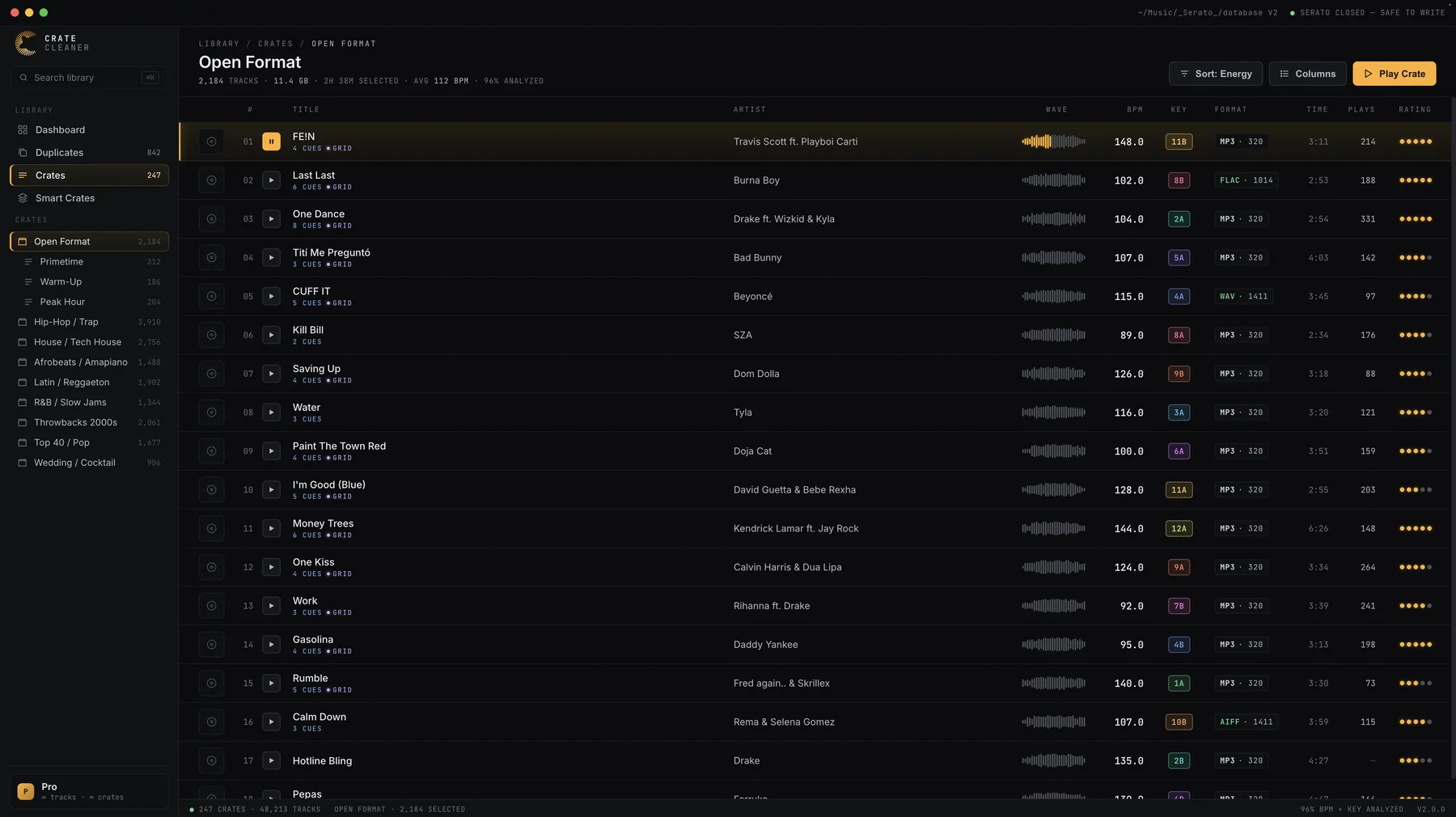
A crate system is only as good as the library underneath it. Over time, duplicate entries and dead missing-file links creep in and clutter the crates you rely on, so you end up scrolling past two copies of the same track or loading one that will not play. Crate Cleaner scans your real Serato DJ Pro library on macOS: Duplicate Finder archives the duplicate copies and moves their crate memberships onto the one you keep, and Library Repair relinks broken files, so the structure you built stays accurate and fast to browse. The scan is free on your real library with no card required, so you can see what it finds first; the free plan then archives 10 duplicates and makes 5 repairs a day, and Pro and Studio have no limit.
Try Crate Cleaner free → · See pricing →
If you are doing a big reorganisation, back up your _Serato_ folder first and clear out duplicate tracks before you start, so you are organising a clean library rather than filing the mess.
FAQ
Do crates copy or move my music files? Neither. A crate only references a track. The same song can be in many crates, and removing it from a crate never moves or deletes the file.
Should I organize my music into folders on my computer? No. Keep all your audio in one folder and organize inside Serato with crates and subcrates. Rearranging files in Finder breaks the paths Serato uses and turns tracks orange.
What is the difference between a crate and a smart crate? A crate is filled by hand. A smart crate fills itself using rules you set, like a BPM range or a genre tag, and updates automatically.
How do I make a subcrate? Drag one crate onto another. Dropping it onto the parent crate’s name nests it as a subcrate, which you can collapse to keep the list tidy.
How many crates is too many? There is no hard limit, but the goal is speed during a set. If you cannot find a record quickly, simplify: fewer top-level crates, with subcrates and smart crates doing the detailed sorting.
Keep the crates you built accurate
Crate Cleaner archives duplicates and relinks dead entries so your crate structure stays clean and fast to browse. Free plan on your real library.