How do you clean up your Serato library?
Serato DJ Pro has no one-click cleanup, so a tidy library comes from doing a few jobs in the right order: back up first, fix orange missing files, remove duplicates, tidy your crates, re-analyze anything with a wrong BPM or key, then repair the database if it has grown bloated or corrupt. Do it in that sequence and you avoid the classic trap of creating fresh duplicates and dead crate entries while cleaning up around broken file paths. This guide is the overview; each step links to the detailed walkthrough.
A clean-up routine for Serato, in order
- Back up your Serato folderQuit Serato and copy the _Serato_ folder from your Music directory somewhere safe. It holds your crates, cue points and database, so a copy turns any mistake into a quick restore.
- Fix missing (orange) files firstRelink or remove orange missing tracks before anything else. Cleaning up around broken file paths just creates duplicates and dead crate entries later.
- Remove duplicate tracksSort the All… crate by Song or File Name to group identical tracks, confirm which copy to keep using the Location and bitrate columns, then delete the stray one.
- Tidy crates and subcratesDelete empty or one-off crates, merge near-duplicates, and group related crates into subcrates so your library is browsable during a set.
- Re-analyze corrected filesRe-analyze tracks whose BPM or key looks wrong so beatgrids and key tags are trustworthy before you rely on them live.
- Repair a bloated or corrupt databaseIf Serato is slow to load or throws a corrupt-database error, rebuild the database v2 file by rescanning ID3 tags, or restore the _Serato_ folder from your backup.
- Run a pre-gig checkBefore the next gig, confirm every track in tonight’s crates loads, is analyzed and has cue points, so nothing surprises you on stage.
Why Serato libraries get messy
A cluttered library is rarely down to bad habits. It is a side effect of how Serato tracks files. Every time you move music, switch computers, plug in a different drive or re-import a folder, Serato can add new entries without removing the old ones. Over months that leaves you with three problems layered on top of each other: orange missing tracks that point at files that moved, duplicate entries for songs you only own once, and a database that keeps growing because Serato adds information but never really shrinks it. The result is slow load times, cluttered crates and, at the worst moment, a track that will not load mid-set. To stop it building up again, see how to organize a DJ music library.
There is no single “clean up my library” button in Serato DJ Pro to fix all of that at once, which is why it helps to work through the jobs in a set order rather than poking at symptoms.
Step 1: Back up before you change anything
Bulk edits are the one time a backup genuinely saves you. Quit Serato and copy the _Serato_ folder (in your Music directory) somewhere safe before you start. It holds your crates, cue points and library database, so any mistake becomes a thirty-second restore instead of a lost night’s prep. Full steps: how to back up your Serato library.
Step 2: Fix missing files first, not last
This is the step most DJs skip, and skipping it is what makes cleanup go wrong. Orange tracks mean the file moved, was renamed, or lives on a drive that is not connected. If you start removing duplicates or re-importing folders while those broken entries are still there, you tend to keep the old missing entry and add a new working one, which is how duplicates breed in the first place.
Fix the orange tracks first by relinking them to their real location. Start here: how to fix missing files in Serato. If Serato’s own Relocate Lost Files tool is not finding them, that has its own fixes: Serato relocate lost files not working.
Step 3: Remove duplicate tracks
With missing files handled, group and clear duplicates. Open the All… crate, sort by Song or File Name so identical titles line up, and add the Location column so you can tell a true duplicate from two different versions of the same song. A clean edit and a dirty edit, or a 320kbps and a 128kbps copy, share a title but are different tracks, so confirm before you delete. The full method, including the difference between Alt+Delete and Control+Shift+Delete, is here: how to remove duplicate tracks in Serato.
Step 4: Tidy your crates
Now the library is trustworthy, make it browsable. Delete empty and one-off crates, merge near-duplicate crates, and group related ones into subcrates so you can actually find music during a set. Remember crates are playlists, not folders, so deleting a crate removes the grouping, not your music. See how to organize your Serato crates, and if you need to remove one, how to delete a crate (and get it back).
Step 5: Re-analyze anything with a wrong BPM or key
A clean library is not much use if the BPM or key data is wrong. Re-analyze tracks that look off so your beatgrids and key tags can be trusted when you are mixing. Details: how to analyze BPM and key in Serato the right way, and if you mix harmonically, harmonic mixing with the Camelot wheel.
Step 6: Repair a bloated or corrupt database
If Serato is slow to open, drops crates, or throws a corrupt-database error, the database v2 file itself needs attention. Often a rescan of ID3 tags rebuilds it; in worse cases you restore the _Serato_ folder from the backup you made in Step 1. The full recovery path, without losing crates, is here: fix a corrupt Serato database.
Step 7: Verify before your next gig
Finish with a pre-gig pass so the cleanup actually pays off on stage. Confirm every track in tonight’s crates loads, is analyzed and has cue points set. The checklist: the DJ pre-gig checklist for Serato.
The faster way: a Serato-aware cleaner
Every step above can be done by hand, and on a small library that is fine. The problem is scale: on thousands of tracks, hunting orange files and eyeballing duplicates one by one turns an afternoon into a chore, and folder-based tools that do not understand Serato tend to leave broken entries behind.
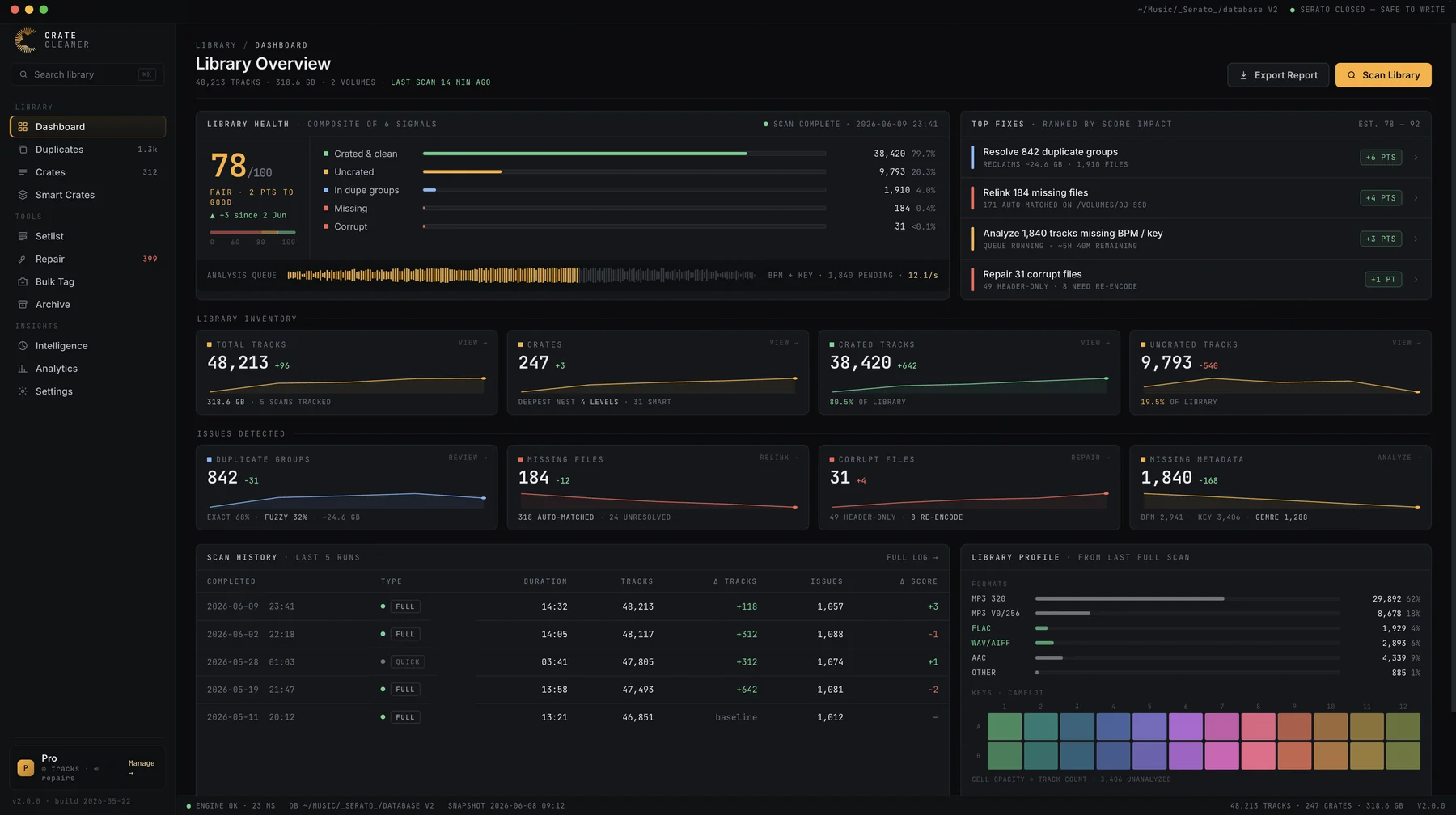
Crate Cleaner reads your actual Serato DJ Pro database instead of just scanning folders, so it finds true duplicates, missing files and corrupt tracks. Duplicate Finder archives the extra copies rather than deleting them and moves their crate memberships onto the copy you keep, Library Repair relinks the missing files, and the health score lists the corrupt ones, so there are no orphaned entries or broken paths afterwards. The scan is free on your real library with no card required, so you can see what it finds first; the free plan then archives 10 duplicates and makes 5 repairs a day, and Pro and Studio have no limit.
Try Crate Cleaner free → · See pricing →
FAQ
Does Serato have a built-in library cleanup tool? No. As of 2026 Serato DJ Pro has no one-click cleanup. You clean up manually by fixing missing files, sorting and deleting duplicates, tidying crates and rescanning ID3 tags, or you use a Serato-aware cleaner that reads the library database directly.
Will cleaning up my library delete my music files? Not unless you choose to. In Serato, Alt+Delete removes a track from the library only and leaves the file on your drive; Control+Shift+Delete also sends the file to the Trash. Back up your _Serato_ folder before a big cleanup either way.
Why is my Serato library so slow to load? Usually a bloated or partly corrupt database v2 file, plus thousands of stale or missing entries Serato never cleaned up. Fixing missing files, removing duplicates and rescanning ID3 tags shrinks and rebuilds the database, which speeds up load time.
How often should I clean up my Serato library? Do a quick pass whenever you add a big batch of music, and a full cleanup every few months or before an important run of gigs. A tidy library is faster to browse, backs up cleanly and is less likely to fail mid-set.
See everything your library needs cleaned
Crate Cleaner finds duplicates, missing files and corrupt tracks across your real Serato library and fixes them without breaking crates. Free plan, no card.